
The Best Clipboard History Manager for Mac in 2026
.webp&w=3840&q=75)
In my daily work, I probably open my clipboard fifty times a day.
Copying URLs, images, short pieces of text, snippets of code and references . On Windows, clipboard history had become second nature. Press a shortcut, scroll, paste, move on. It was invisible, but essential.
When I switched to Mac, it was the first real productivity friction I noticed.
Suddenly, copying something new meant losing the previous item. There was no reliable history, no way to intentionally keep what mattered. Even with the recent basic clipboard access through Spotlight, it still felt like a fallback rather than a real tool.
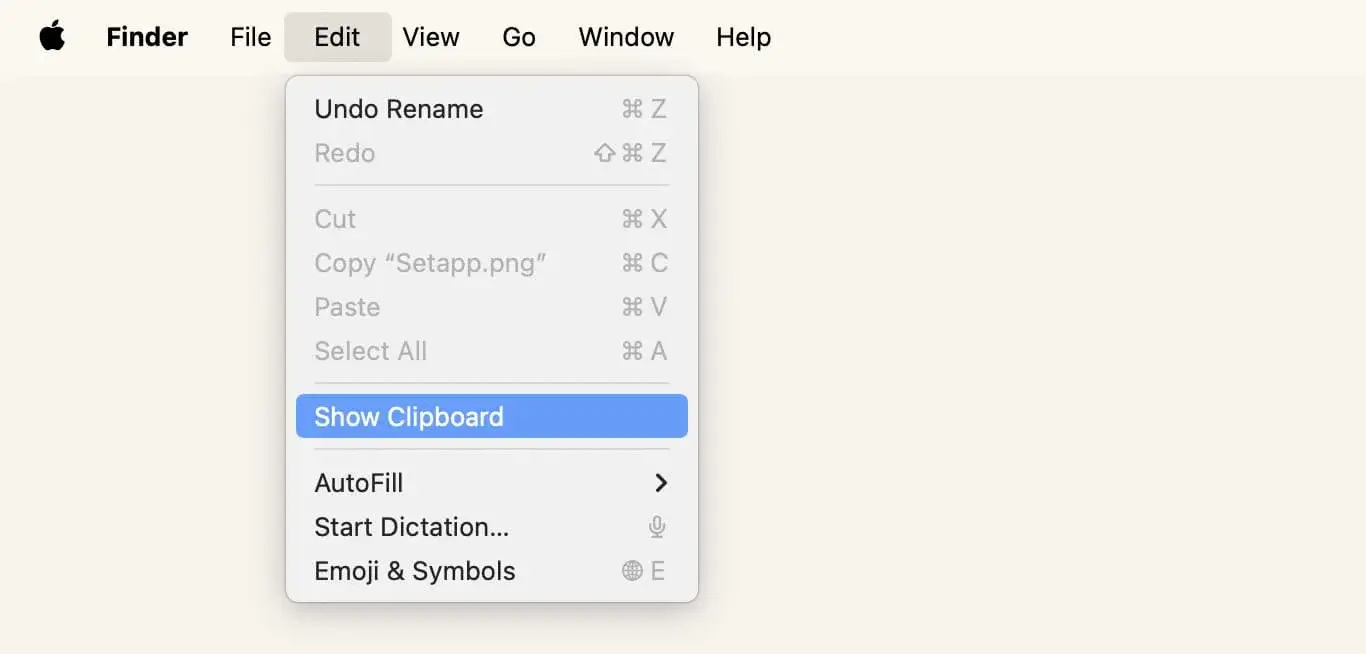
And knowing the Mac community, I was convinced there had to be a better solution.
Because clipboard history is not a luxury. It is infrastructure.
A good clipboard should forget by default and remember on purpose.
This is how I fixed it on my Mac.
The best clipboard history manager for Mac in 2026: Paste
After trying built-in Spotlight history, Raycast, and a few lightweight clipboard managers, one solution clearly stood out.
Paste does not just add clipboard history to macOS. It turns it into a real productivity layer.
Every time you copy something, it is automatically stored in a clean, visual timeline. You can scroll through previous items, search instantly, and paste exactly what you need without breaking your flow.
But what makes Paste different is not just history. It is control.
You decide how long items stay in memory. Temporary copies can disappear automatically, while important snippets can be saved permanently inside collections.
Quick Comparison: Clipboard Managers for Mac
| App | Price | Strength | Limitation | Best For |
|---|---|---|---|---|
| Paste | 3,99 €/month or ~29,99 €/year (also on Setapp) | Visual timeline, collections, retention control | Subscription | Structured workflows |
| Raycast | Free / ~9,50 €/month (Pro) | Fast launcher with clipboard included | Clipboard not core focus | Raycast users |
| Alfred (Powerpack) | ~39 € one-time / ~69 € lifetime upgrades | Powerful workflows | Less visual, setup required | Automation enthusiasts |
| Maccy | Free / ~10 € | Lightweight and minimal | No collections | Minimalists |
| CopyClip | Free / ~7 € Pro | Basic clipboard history | Very limited features | Casual use |
Why Paste Makes a Real Difference

Most clipboard managers solve the same basic problem. They let you access what you copied earlier.
Paste goes further.
It does not just store your clipboard history. It structures it.
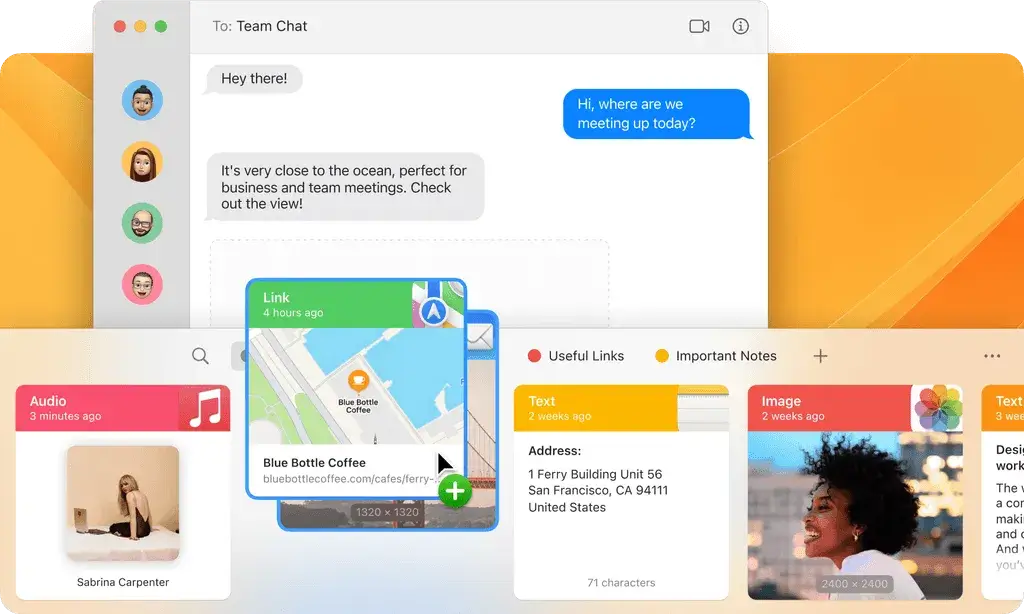
Instead of a simple vertical list of previous copies, you get a clean visual timeline. You can scroll smoothly through text, images, links, or code snippets without breaking your flow.
But the real difference is control.
With Paste, you decide how long items stay in memory. Temporary copies can disappear automatically after a few days, while important content can be saved permanently inside collections.
That changes the dynamic completely.
Your clipboard stops being a passive log of accidents. It becomes an intentional workspace.
And once you start organizing snippets, templates, recurring links, or code blocks into collections, it stops feeling like a clipboard tool.
It starts feeling like a lightweight knowledge layer built directly into your keyboard workflow.
How I Use Paste in My Daily Workflow
Clipboard history only becomes valuable when it fits naturally into your routine.
Here is how Paste integrates into mine.
1. Code snippets and technical references
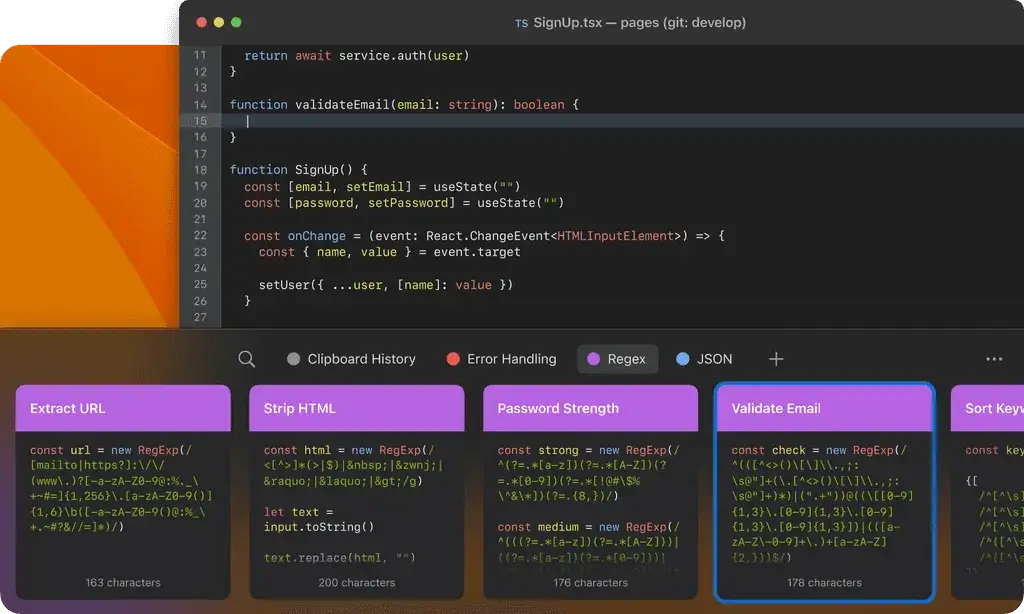
When writing or testing code, I constantly copy small pieces. Functions, commands, documentation links, error messages.
With a basic clipboard, these would overwrite each other within minutes.
With Paste, I can scroll back through everything I copied, search instantly, or move useful snippets into a dedicated collection so they stay permanently available.
It saves time, but more importantly, it reduces friction.
2. Writing and content templates
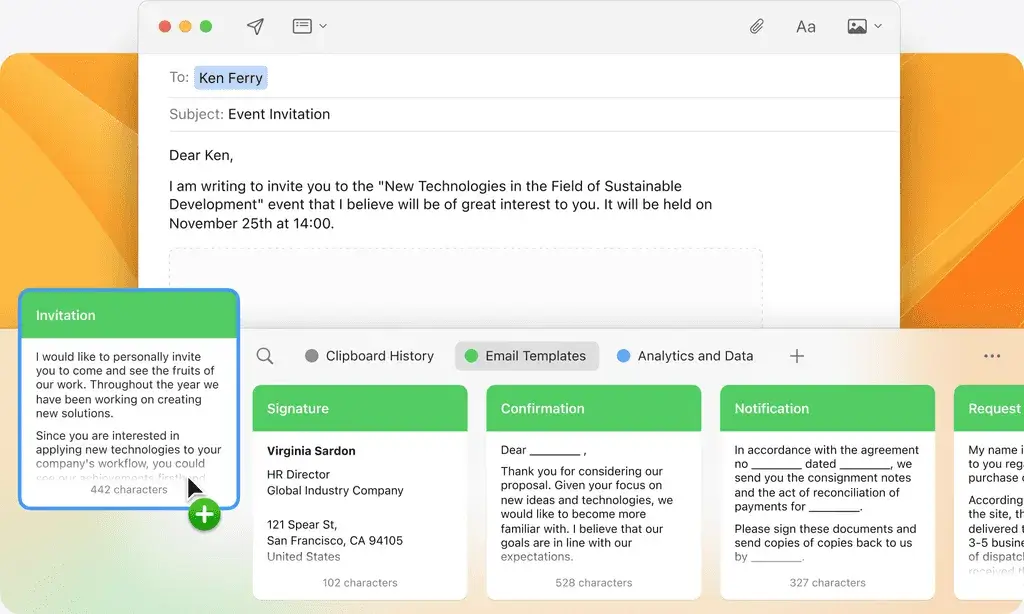
I reuse structures often.
Email templates, article formatting blocks, meta descriptions, standard replies.
Instead of storing them in a separate document, I keep them inside organized collections in Paste. They are always one shortcut away.
The clipboard becomes an extension of my writing environment.
3. Temporary research material
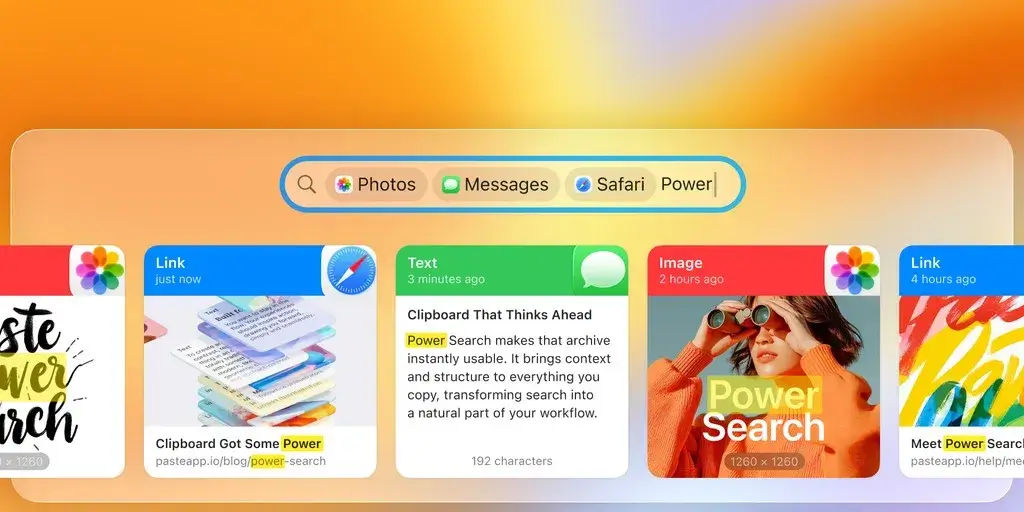
When researching, I copy multiple links, quotes, references, image URLs.
Not everything deserves to be saved forever.
Paste lets temporary items expire automatically after a few days. I do not need to manually clean anything. Important items get moved to collections. The rest disappears.
That balance matters.
4. Images and quick assets
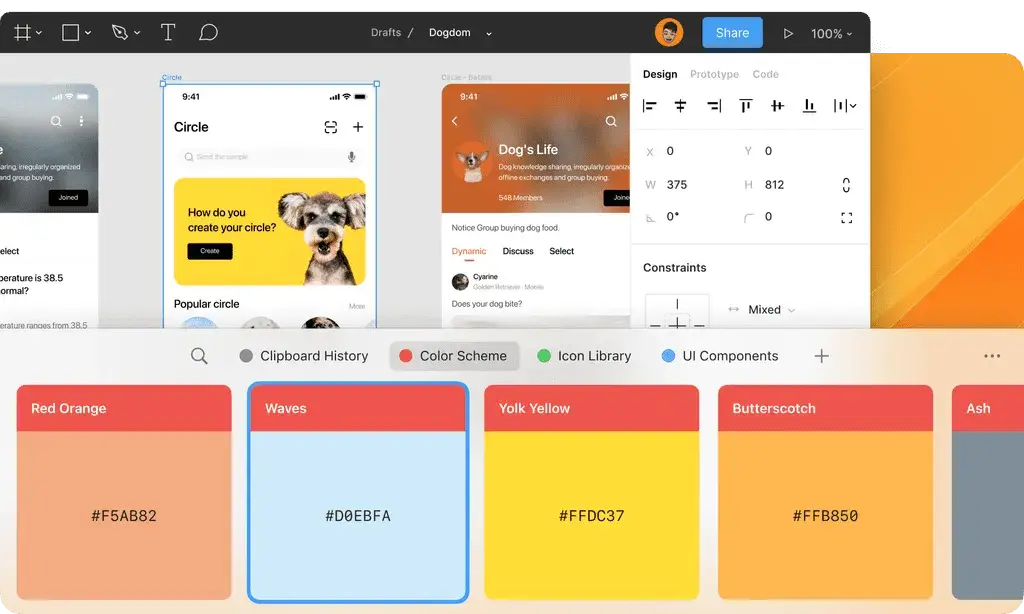
Screenshots, UI elements, small visuals.
Instead of losing them after the next copy, they remain accessible. And because the timeline is visual, it is easy to identify the right item instantly.
Combined with CleanShot X for capturing and Paste for storing, it becomes an incredibly smooth workflow. Capture, copy, access later. No friction, no lost assets.
For me, that combination feels like the ultimate clipboard setup on Mac.
Conclusion
Not everyone needs a dedicated clipboard manager.
If you only copy and paste occasionally, the built-in macOS solution might be enough. It works as a basic recovery tool, and for light usage, that is perfectly fine.
But if you spend your day writing, coding, researching, managing links, or working with small visual assets, clipboard history quickly becomes more than a convenience.
It becomes infrastructure.
Paste does not try to reinvent macOS. It simply fixes one of its quiet limitations and turns it into a structured, intentional system.
You stop worrying about losing something you copied.
You stop opening temporary notes just to save fragments.
You trust your clipboard.
And that changes the way you work.
A good clipboard should forget by default and remember on purpose.
Clipboard history is not just a feature. It is infrastructure.
More in Tech Apps
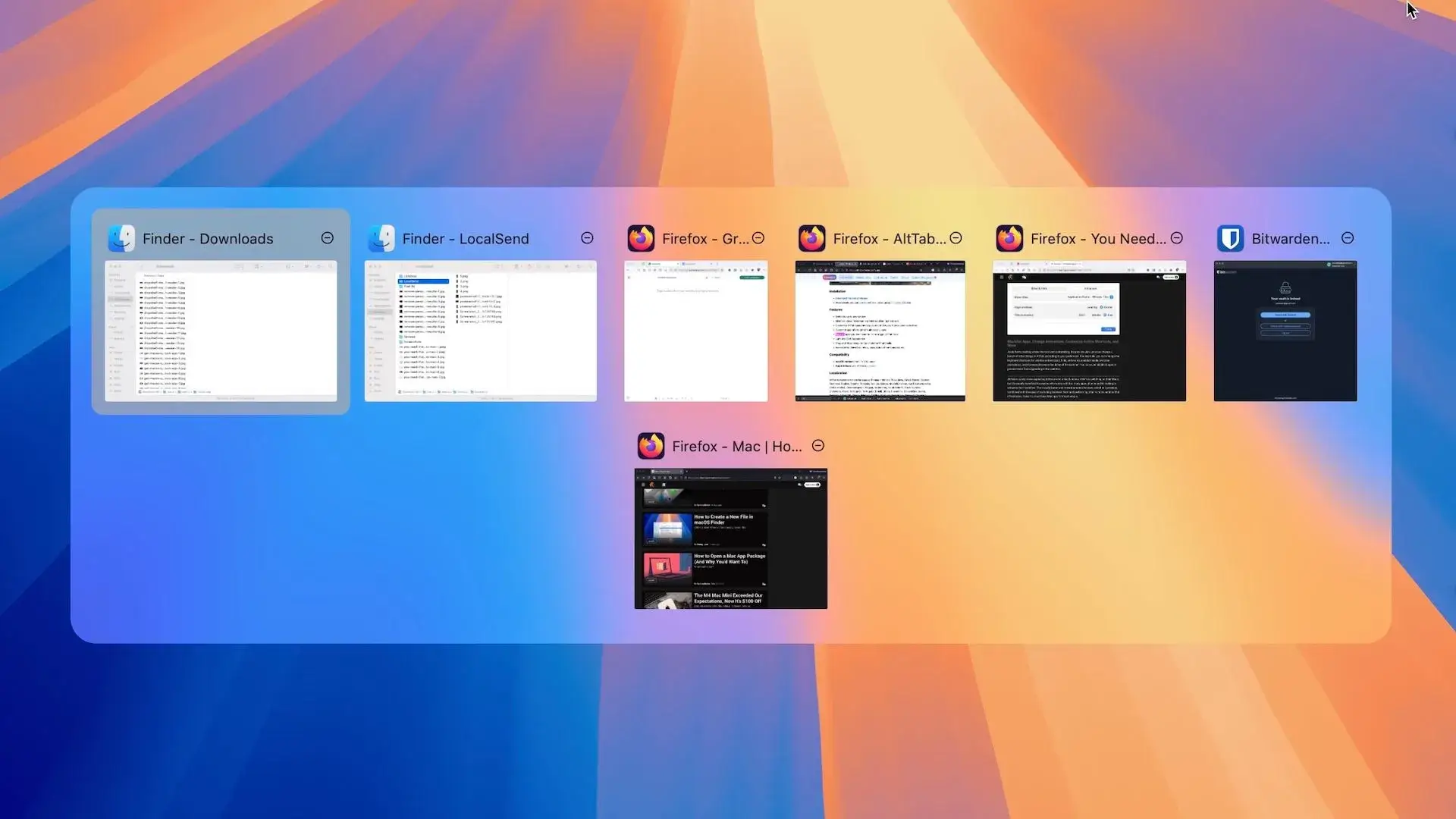
AltTab vs DockDoor on macOS 2026: Rethinking Window Switching
AltTab vs DockDoor on macOS: compare speed, previews, customization and privacy to find the best window switcher for your workflow.
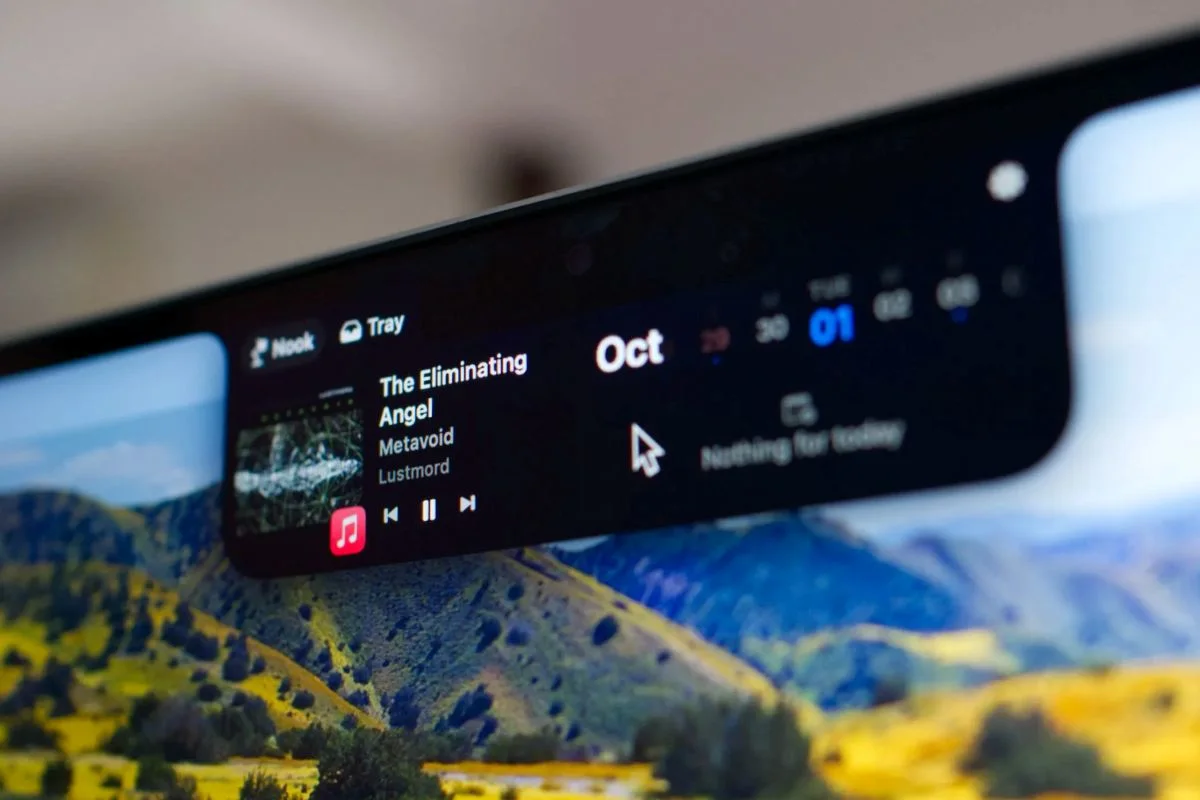
The Best Notch Apps for MacBook 2026 (macOS Comparison Guide)
I tested the best notch apps for MacBook to see which one really improves productivity. Here’s the full comparison and my final choice.
The Best Screenshot Tool for Mac in 2026: CleanShot X
Discover why CleanShot X is the best screenshot tool for Mac in 2026, with powerful capture, annotation, and sharing features.